Quick Start
Understand Boords' key features and how to run your first project
Pre-production is where projects succeed or fall apart
Most production problems trace back to the same root cause: things weren't aligned before the shoot started or the animation began. Pre-production is supposed to solve this. But it's also the phase that gets squeezed.
Boords is built for video teams who run multiple projects at once and can't afford for pre-production to slow them down.
Follow the step-by-step guide below to understand how to run your first project in Boords:
Step 1: Script
In Boords, the script lives in the same project as the storyboard, so the writing stage and the boarding stage never drift apart. The three quickest ways in:
- Write the script in Boords. Create a script from the project dashboard and write it there: free-form, or as a two-column AV script with voiceover timing built in. Share the review link so the client can comment on exact lines, keep each round as a version, and when the words are approved press Storyboard to turn the script into editable frames. See the Scripts overview to get started.
- Import a finished script into a storyboard. Already have the script as a file? Upload it when you create a storyboard and Boords converts it into a storyboard structure automatically. Scenes become frames, ready to fill.
- Start with notes. Drop in rough ideas, a brief, a concept, a few bullet points, and the Boords Agent will help shape them into a script to build from.
Prefer to work straight from a blank canvas? You can also jump directly into frames without a script.
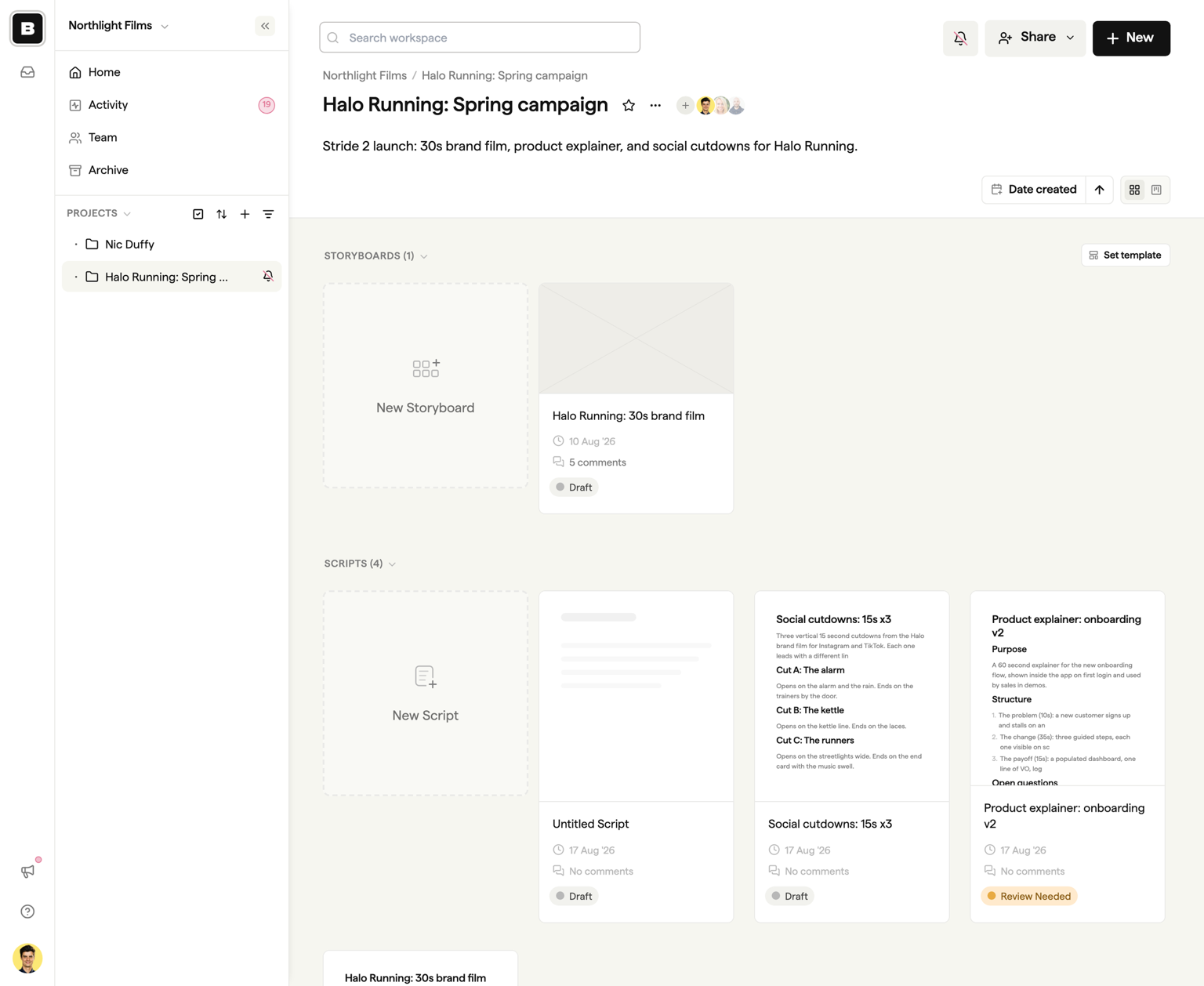
Use the script to test the brief before you build anything. Misalignments that aren't obvious in a brief become obvious in a script. Catch it now and it costs an afternoon. Catch it after the boards are built and it costs a week.
⚠️ Common mistake: Keeping the script and storyboard in separate tools. When they live apart, they drift apart. By review time, the client is reacting to two different versions of the same project.
Step 2: Storyboard
The storyboard is where the production takes shape. For the client, it's the first real look at what the piece will become. For the team, it's the document that drives everything downstream: shot lists, animatics, production schedules, animator briefs.

Boords gives you flexibility in how you build it. Generate frames using the AI image generator, or bring in your own artwork as a starting point. Frames can be as rough or as refined as the project requires.
Iterating is fast. Drag frames to reorder, duplicate in a click, and the numbering takes care of itself. No manual renumbering or layout work every time something shifts.
💡 The quality of your notes determines the quality of your handoff. Custom note fields keep every production detail on the frame. The more precise the storyboard, the fewer decisions get made on set or in the studio without you.
⚠️ Common mistake: Over-polishing early boards before the direction is locked. It delays decisions that matter more than the artwork at this stage.
📖 Want to know more? Learn more about editing storyboards in Boords.
Step 3: Animatic
Static boards show you what's in each shot. The animatic shows you how the whole piece flows. Set the timing per frame, add a scratch voiceover or temp track, and Boords generates a timed video of the entire piece.
This is where timing problems surface. Shots that feel right on paper but play too slow, sequences that need breathing room, transitions that don't land. Issues invisible in static boards show up immediately when it plays, and at this stage they're still straightforward to fix.
For animation teams, the animatic bridges pre-production and production. The After Effects export carries timings and audio across directly, so nothing gets lost between sign-off and production.
📋 In practice: A scratch voiceover is enough. Once the client can hear and watch the piece together, alignment conversations close faster.
💡 Your most persuasive tool: Send the animatic when static boards aren't landing. Clients who watch it align on the creative direction faster than clients stepping through frames.
📖 Want to know more? Learn more about animatics in Boords.
Step 4: Share
Getting boards in front of the right people at the right time is one of the more frustrating logistics of pre-production. Boords simplifies this.
Share a link and the client has immediate access to a clean, client-ready view of the storyboard and animatic. No account or software needed, no friction on their end.
A storyboard in Boords can have multiple versions, each with its own link. As it moves through rounds, you decide what the client sees and when. Early concepts, revised directions and near-final cuts can all be shared independently.


You control what each link shows: the board, the animatic, and the current status. Clients can view and comment directly, and password protection keeps work that isn't ready for wider eyes with the right people.
💡 You control what the client sees, and when. Choose whether the client can switch between versions or is locked to the one you've shared. Early concepts stay separate from near-final work until you're ready.
📖 Want to know more? Learn more about sharing in Boords.
Step 5: Review
Client feedback is where pre-production most commonly breaks down. Notes arrive across email, Slack and WhatsApp, from multiple people, often contradicting each other. Comments are missed, and by the time revisions start nobody can agree on what was actually said.
In Boords, clients leave comments directly on the frame they're referring to via the shared link. No account needed. They can annotate on frames, attach reference images, and reply in threads. Feedback lands where it belongs: on the work.

On the team side, every comment, mention, and reply surfaces in the notifications inbox. Follow a storyboard or an entire project and nothing gets missed, including notes from guest reviewers. Tag a teammate with an @mention and they're pulled into the conversation immediately.
Team-only comments keep internal notes separate from what the client sees. Useful for aligning internally before responding to client feedback.
📋 In practice: Use @mentions to pull specific teammates into individual comments. It keeps conversations focused and makes it clear who's responsible for actioning each note.
⚠️ Common mistake: Sharing the review link without a clear decision-maker. Conflicting feedback from multiple reviewers is harder to action than no feedback at all. Establish who holds sign-off authority before the link goes out.
Step 6: Sign off
As the storyboard moves through review rounds, each iteration lives as a version within the same storyboard. When the client is happy, that version becomes the record of what was agreed.

In Boords, sign-off is a status change. Mark individual frames or the entire storyboard as Approved. The person who approved it, the version, and the timestamp are recorded automatically in the Activity Log.

💡 Protect your margins. Sign-off in Boords is a timestamped record. When the "one small change" conversation starts, the Activity Log shows exactly what was agreed and when.
⚠️ Common mistake: Treating verbal or email approval as sign-off. A client saying "looks good" on a call isn't a record. A status change in Boords is.
📖 Want to know more? Learn more about the Activity Log in Boords.
Step 7: Deliver
Approved boards are only useful if the right people have them before production begins. The handoff is where pre-production work either carries forward or gets lost.
Boords exports everything the production team needs from the same source: the approved storyboard. The storyboard can be viewed as a shot list, or exported as a spreadsheet and shared with the wider team.

For the client, a branded PDF gives them a clean record of what was approved.

💡 Toggle to the shot list view during pre-production to sense-check the breakdown before anything goes to the wider team. When it's ready, export as a spreadsheet.
⚠️ Common mistake: Delivery isn't the end of the process. The approved boards in Boords are a live reference. If scope questions come up mid-production, the record is already there.
📖 Want to know more? Learn more about export formats in Boords.
Boords fits into how you already work
Boords is built to sit alongside the tools your team already uses. Connect Boords to Slack and your notifications arrive as DMs. Mentions, replies, and new comments on storyboards you follow are delivered directly to you without leaving Slack.
For teams with existing production pipelines, a public API and webhooks are also available to connect Boords to the tools and systems you already use.